📱 Building the Ultimate Dashboard: Why Kiosk Satellite is a Game Changer
Let me confess something right out of the gate: I was never a “dashboard person”.
My original perception of smart home dashboards was exactly what Yamawine perfectly described in this excellent article—you take a tablet and aggressively cram a ton of chaotic, overwhelming data onto it until it looks like a spaceship control panel. For the longest time, I was perfectly happy just sticking to simple 4-button smart physical switches on my walls.
But then a thought crept in. What if I kept that exact minimalist 4-button logic, added just a little bit of visual feedback, threw in some AC controls, and put it on a screen?
This idea became a mild obsession when I managed to score 2 Echo Show 5 and a Lenovo ThinkSmart View for dirt cheap. Because these devices don’t have built-in batteries, you don’t have to worry about spicy pillows (battery swelling) ruining your house over time. `
I wanted an experience similar to an Alexa or Google Nest smart display, but without being trapped in their limited, locked-down walled gardens. Thus began my descent into the rabbit hole of dashboard apps.
🛑 The Trial and Error: VACA and AVA Pro
Section titled “🛑 The Trial and Error: VACA and AVA Pro”I spent a long time hunting for a solution that didn’t drive me crazy.
First, I tried VACA (Voice Assist Companion App). It was okay, but I honestly didn’t enjoy how I had to manually set up automations for things that absolutely should have worked by default. The voice commands felt entirely too rigid for a modern smart home.
Next, I moved on to AVA Pro. This app had the opposite problem: an absolute avalanche of settings. It actually had an awesome interphone feature to communicate from one smart display to another, but it was so overly complex that I ultimately never managed to configure it the way I wanted.
🚀 Enter Kiosk Satellite: A Whole New Dimension
Section titled “🚀 Enter Kiosk Satellite: A Whole New Dimension”I finally stumbled upon Kiosk Satellite, and the user experience is simply in another dimension compared to the other two. I managed to configure a tablet to do absolutely everything I wanted in just two hours. I clicked through all the options, and everything felt incredibly intuitive and natural.
This app is a powerhouse. It features native Home Assistant integration, that interphone feature I wanted, a Music Assistant player/controller, a DLNA player to stream video content, and a Voice Assist mic/speaker. You can even use the tablet’s physical camera as a security feed inside Home Assistant or Frigate NVR! I am still discovering new features, but it basically turned my cheap tablets into ultimate command centers.
🧹 Curing the Dashboard Clutter: The Room-Focused Approach
Section titled “🧹 Curing the Dashboard Clutter: The Room-Focused Approach”So, how did I avoid the usual data-vomit dashboard clutter? I focused entirely on room-specific views.
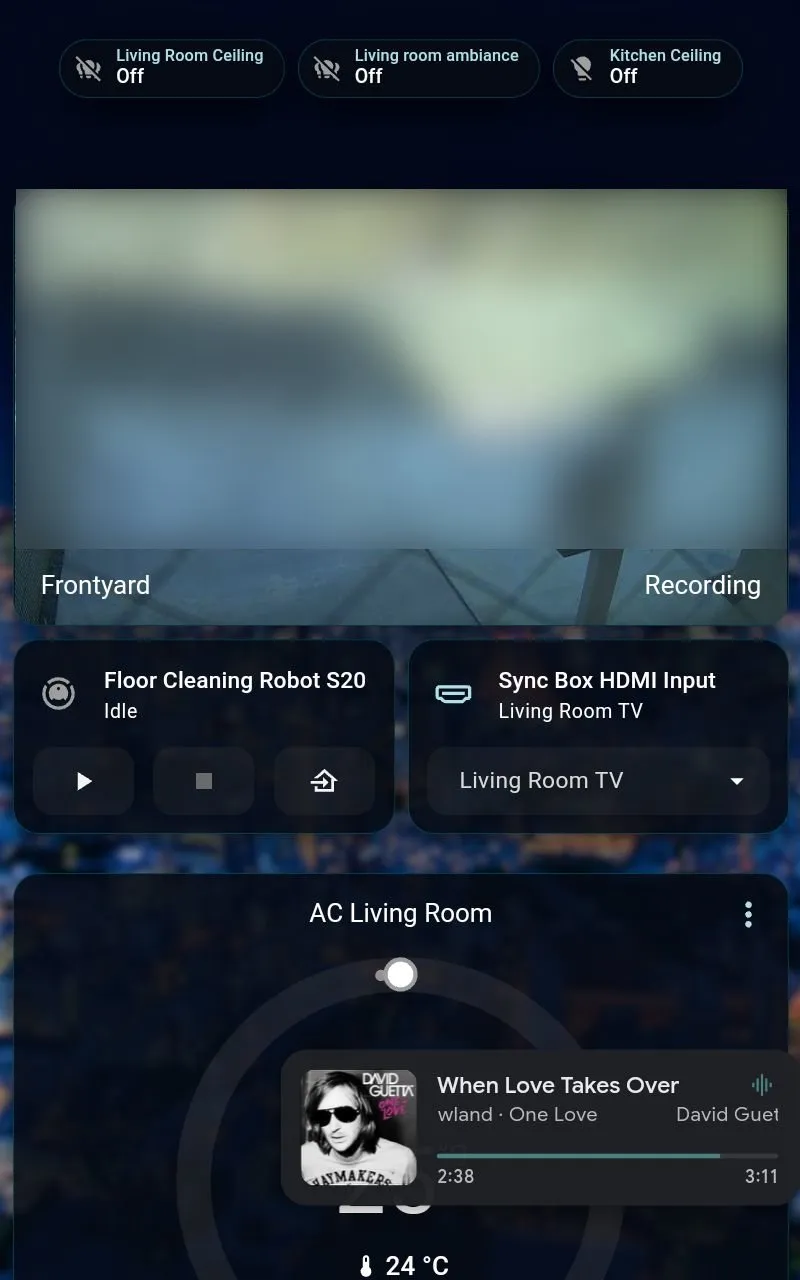
I built a dashboard with multiple tabs, but each tab defaults to controlling only the room that specific tablet is sitting in (Living Room, Office, Master Bedroom). Here is my minimalist breakdown:
- Lights: Separated into two simple groups: Ceiling lights and Ambiance lights (strictly On/Off).
- Climate: I only display the AC thermostat for the room I am currently standing in.
- Strategic Cross-Room Controls: I only add what actually matters. From the Master Bedroom tab, I want to instantly see if the front door is locked, check the front yard camera, and open/close the curtains. From the Living Room tab, I want to see the front yard camera, control the kitchen lights, deploy the robot vacuum, and switch the TV’s HDMI inputs. That is all!
📺 Screensavers and the “Play Dead” Automation
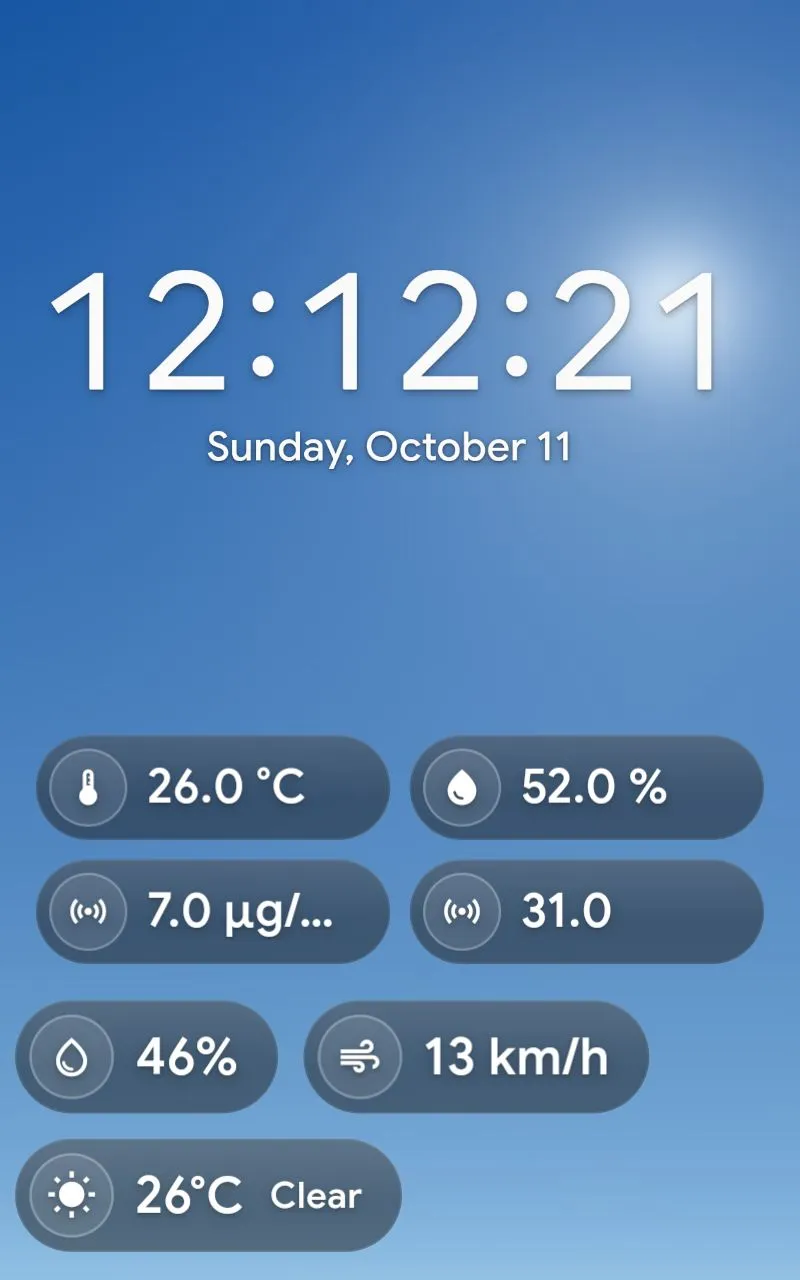
Section titled “📺 Screensavers and the “Play Dead” Automation”Kiosk Satellite has a brilliant screensaver feature. I configured mine to display the time, date, and weather as a background. Hovering over that, it shows up to four critical room metrics (temperature, humidity, and air quality) alongside the outside temperature, humidity, and wind speed. You can easily set these up using Home Assistant entity auto-completion right in the app.
But my absolute favorite feature revolves around the camera tabs. I made a dedicated tab for each security camera. Usually, they sit quietly in the background, not being displayed. But I set up a Home Assistant automation so that whenever an event is detected, the tablet automatically wakes up from its screensaver and snaps straight to the live camera tab!
It is incredibly practical. I instantly know if the mail has arrived, who just rang the doorbell, when my food delivery is waiting, or—most importantly—when to play dead on the couch because a door-to-door salesperson is outside. After a set amount of time, Kiosk Satellite automatically returns to the original tab and goes back to sleep. You can also easily swipe between rooms and cameras if you want to check on things manually.
🗣️ Dual Voice Assistants & Music Control
Section titled “🗣️ Dual Voice Assistants & Music Control”Here is where the true freedom of choice kicks in: Kiosk Satellite lets you set up two different voice assistants from HA Assist simultaneously!
You can configure one wake word to listen in English and a second wake word to listen in Japanese. Or, you can have one wake word trigger local Home Assistant control (turning off lights instantly), while the other wake word connects directly to Claude, Gemini, or ChatGPT for complex AI queries.
The Music Assistant integration is also beautiful. It pulls up the full UI, and when a song plays, a floating display appears showing your current track. (Small caveat: at the time of writing this article, the floating widget showed what was playing but couldn’t actually control the music playback yet. Hopefully, an update fixes this soon!)
💻 Fleet Control and Easy Web Setup
Section titled “💻 Fleet Control and Easy Web Setup”If you are deploying multiple tablets, the Fleet Control feature is a lifesaver. It synchronizes your settings across all your displays instantly. (Pro tip: I removed the “At a Glance” synchronization feature from my fleet sync because I want each tablet to display the specific Home Assistant entities for the room it is located in).
Kiosk Satellite is under heavy development with multiple releases daily. I usually just update once a week after skimming the release notes to see what changed.
The absolute best part of the setup? You can access the tablet’s settings directly through your web browser. Trying to type complex Home Assistant entity names on a tiny Echo Show 5 screen is a form of modern torture, so configuring everything from a real keyboard is a massive win.
Note: The app is currently not available in Japanese, but the developer happily accepts translation contributions here: Kiosk Satellite Localization.
Et voilà! That is how I ended up deploying smart tablets across multiple rooms without losing my minimalist sanity. A massive thank you to Yamawine for prompting me to finally write this article—otherwise, it would have been stuck in my drafts folder forever while I endlessly tweaked settings!